Confidentiality the AI respects
Lock a single file down to the people who must see it. Four access modes per user: View, Download, Edit, Delete. Restricted files are completely hidden from everyone else, including from the AI for those users.
One click. The file disappears for everyone else.
From the file manager, right-click any file and choose Restrict File. The moment you confirm, the file disappears from the file manager and from AI answers for everyone in the firm, except you. Add named users next, with the four access modes you want them to have.
- Granular: per file, not per folder
- Effective immediately for everyone in the firm
- Restriction events recorded permanently in the file's history
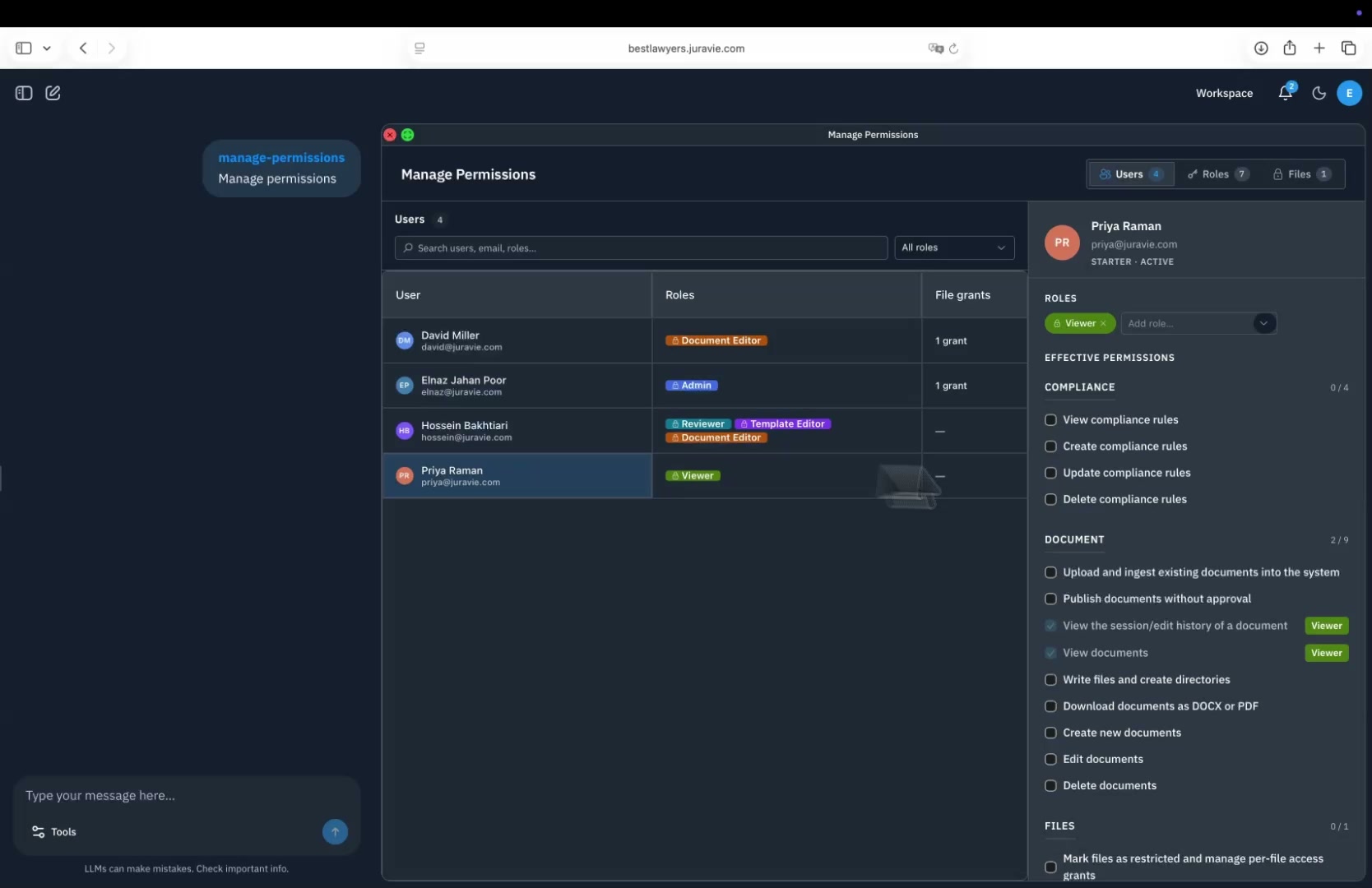
Per user. Per mode. Independently toggleable.
A junior can read but not download. A peer can edit but not delete. A reviewer can view but not change. No predefined bundles: you tick the modes you want, per user, per file.
View
Open the file in read-only mode. Cannot edit, download, or delete.
Download
Save a copy locally as DOCX/PDF. Independent of View, so you can grant download without view-in-app.
Edit
Open an editing session, make changes (manually or via AI), submit for approval.
Delete
Remove the file from the library. Typically reserved for the original restrictor and a small named group.
Same rule for humans and the AI
No grant → the AI cannot reference the file. View-only grant → the AI can read but never edit. Edit grant → the AI can act on it. Two users, the same chat, different answers, based on each user's own access.
Sarah, Senior Associate
Edit grant on Acme_M&A_2026.docx
"Summarize the indemnity clauses in our Acme files."
Surfaces clauses from the M&A file with citations. Sarah can ask the AI to redline.
Jamie, Paralegal
No grant on Acme_M&A_2026.docx
"Summarize the indemnity clauses in our Acme files."
Answers from files Jamie can see. The restricted M&A file is invisible, and uncited.
Same chat, same prompt, same firm. Different answers. There is no "admin override" for the AI.
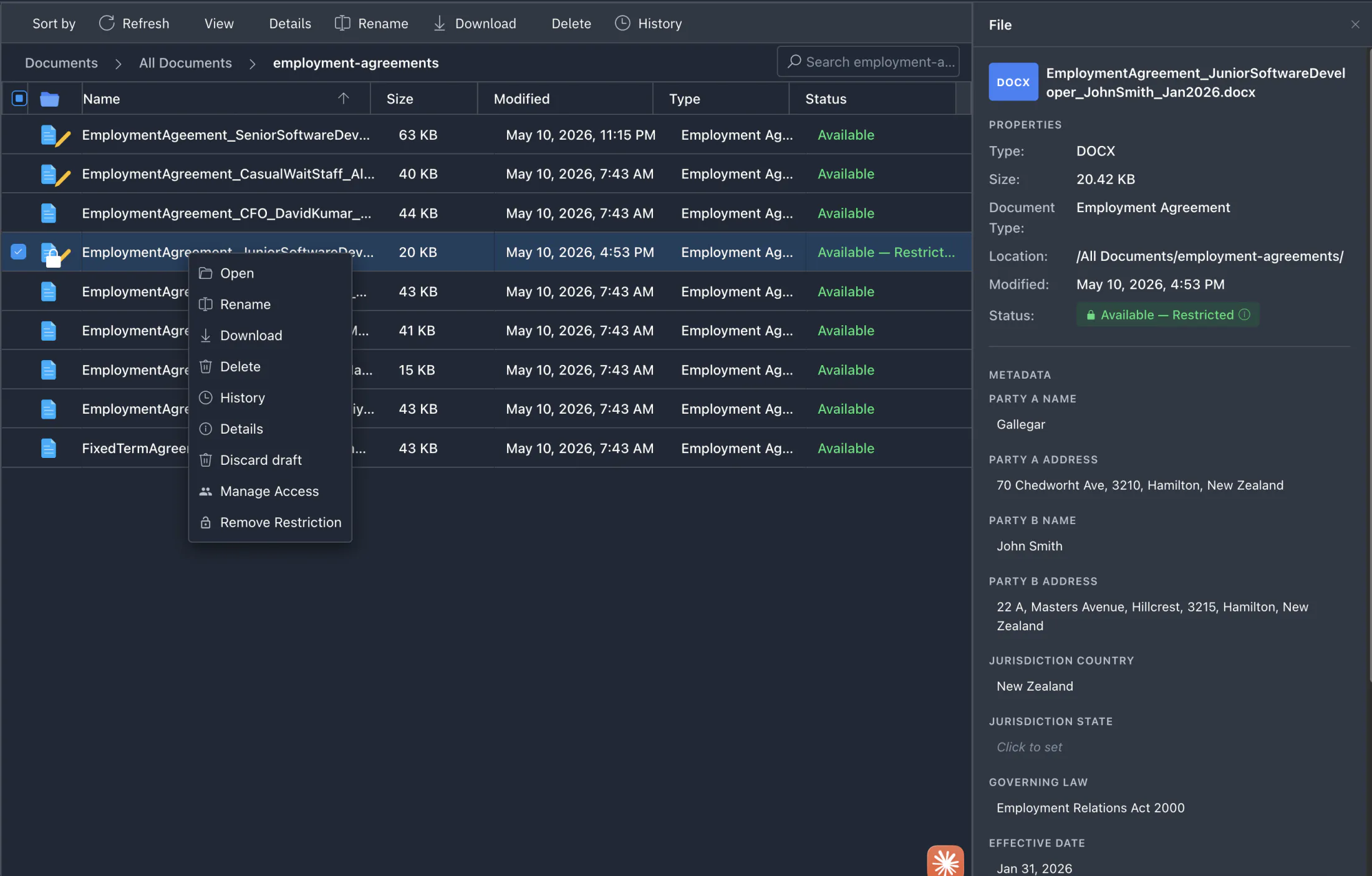
Open it back up when the matter closes
Click Remove Restriction and the file returns to standard role-based access. Your role model takes over again; the file becomes visible to whoever your roles say should see it. The restriction event and its removal are both recorded permanently in the file's history.
- One-click removal: file returns to role-based access
- Re-restrict any time: restrictions can be applied and removed repeatedly
- Both events recorded in the file's history
File-level restrictions are one of three access layers
Custom roles set the rule. Per-user overrides handle the edge cases. Per-file restrictions handle the sensitive matters. All three live in Manage Permissions.
Confidentiality the AI respects, built in
M&A files, partner-only matters, HR investigations: restrict them to the people who must see them. The AI obeys the same rules.