Custom roles. Per-user overrides. Per-file restrictions.
Map your firm's structure to the product, and let the AI inherit it. The same access boundary applies to every human and every AI action.
The AI has exactly the user's access — never more
No grant → the AI can't reference the file. View-only grant → the AI can read but never edit. Edit grant → the AI can act on it. Two users see two different answers from the same chat, based on their own access.
Sarah, Senior Associate
Granted edit access to Acme_M&A_2026.docx
Asks: "Summarize the indemnity clauses in our Acme files."
Juravie surfaces clauses from the M&A file with citations. Sarah can ask the AI to redline.
Jamie, Paralegal
No grant on Acme_M&A_2026.docx
Asks: "Summarize the indemnity clauses in our Acme files."
Juravie answers from files Jamie can see. The restricted M&A file is invisible, and uncited.
Same chat, same prompt, same firm. Different users get different answers based on their own access. There is no "admin override" for the AI.
Lock down a single file to the people who must see it
For M&A files, partner-only matters, HR investigations, and other sensitive content, restrict a single file to a named list of users. Each grant carries four independent toggles (View, Download, Edit, Delete), so a junior can read but not download, or a peer can edit but not delete. Restricted files are completely hidden from everyone else in the file manager and the AI.
- Restrict any individual file: granular, per-file, not per-folder
- Four access modes per user: View / Download / Edit / Delete
- Hidden from the file manager and from AI answers for unauthorized users
- Remove restriction at any time, and the file returns to standard role-based access
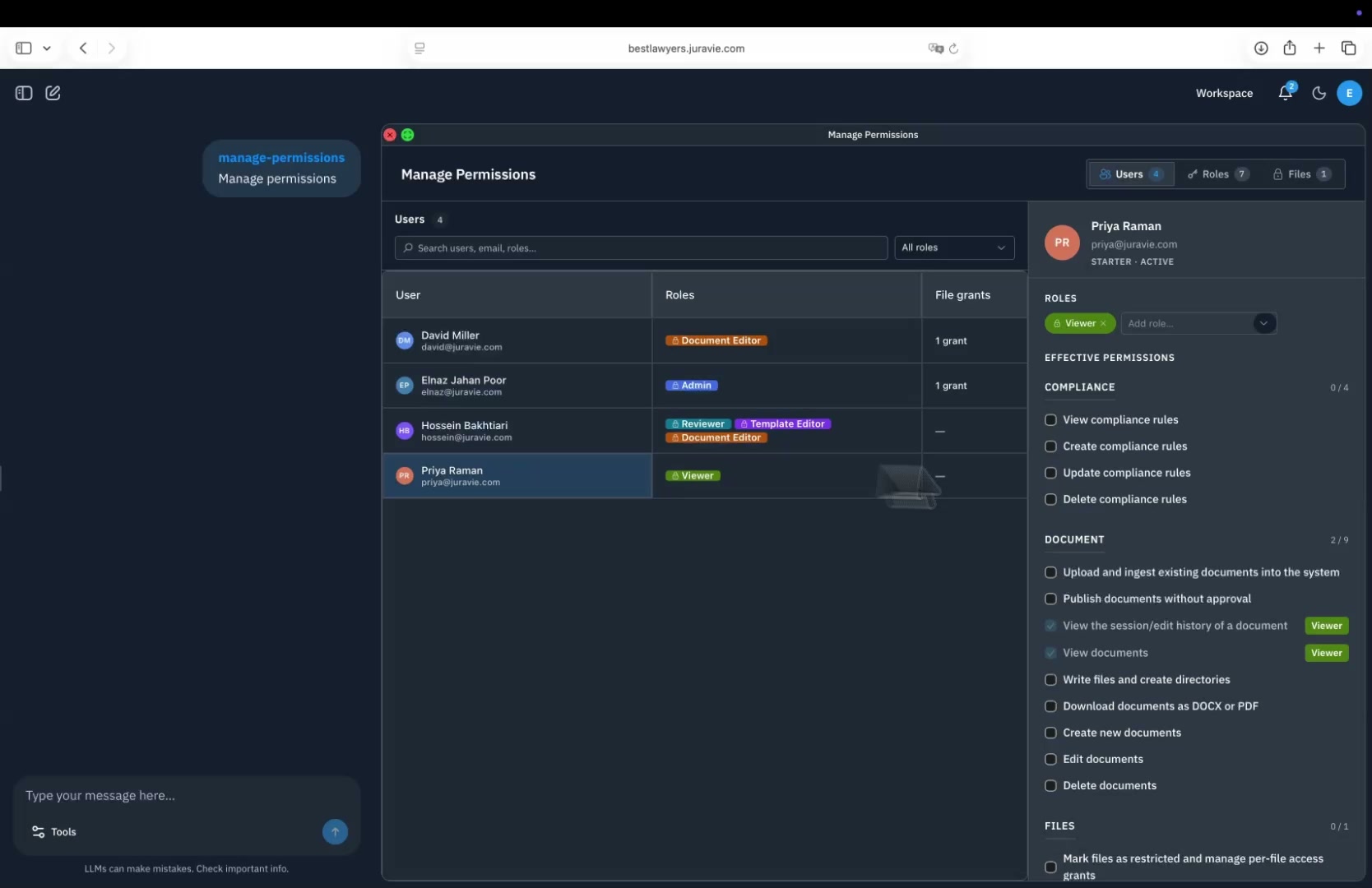
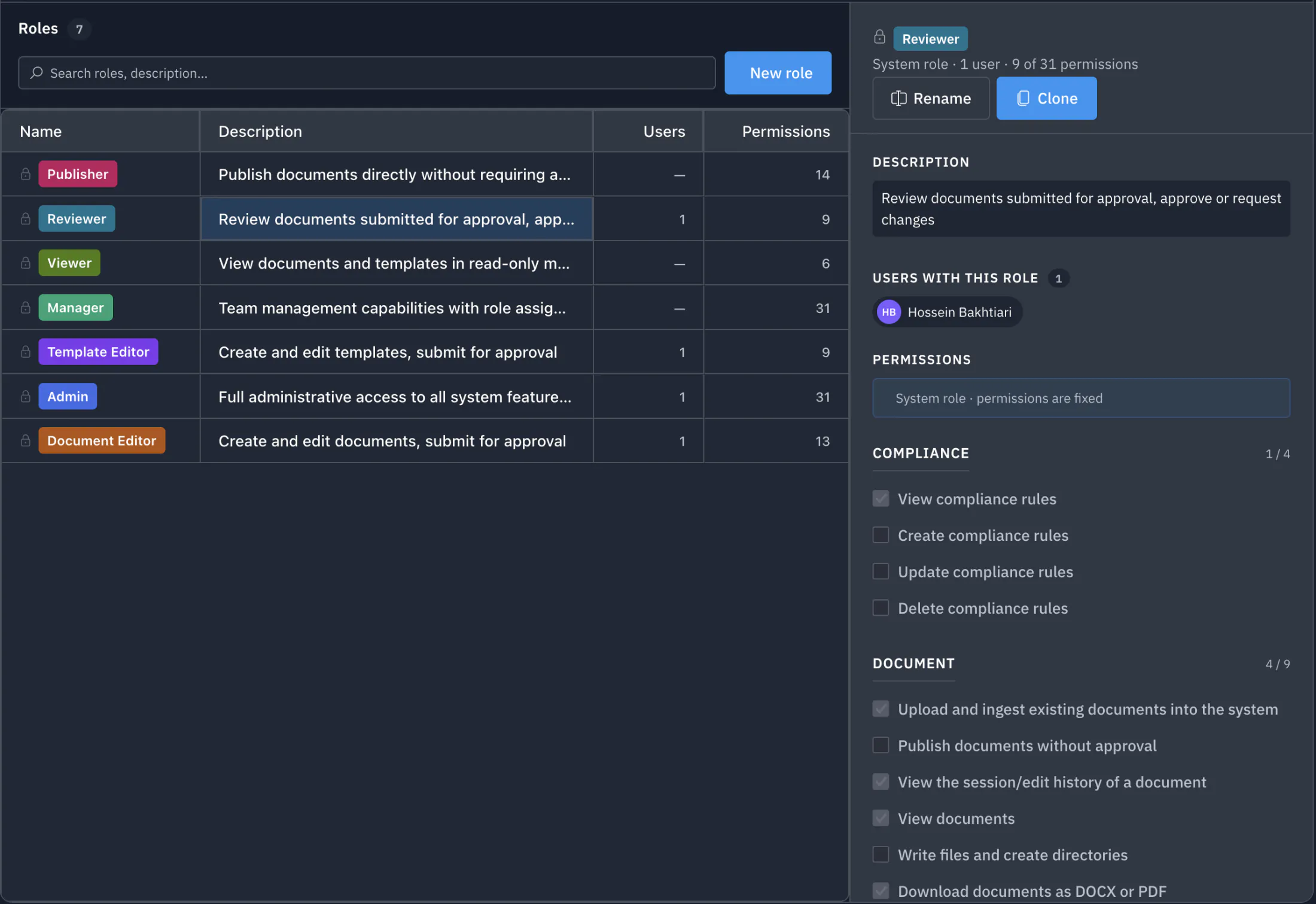
Roles that match your org chart
Start from a system template (Admin, Manager, Editor, Reviewer, Viewer) or build your own. Clone an existing role, rename it, tick the permissions it should have, and save. Roles get colour-coded cards visible to admins and to the user themselves in My Access.
- Create custom roles for paralegals, associates, partners, contract attorneys
- Clone, rename, and tune permissions without losing the original
- System roles are read-only by design, but you can clone them to start a custom role
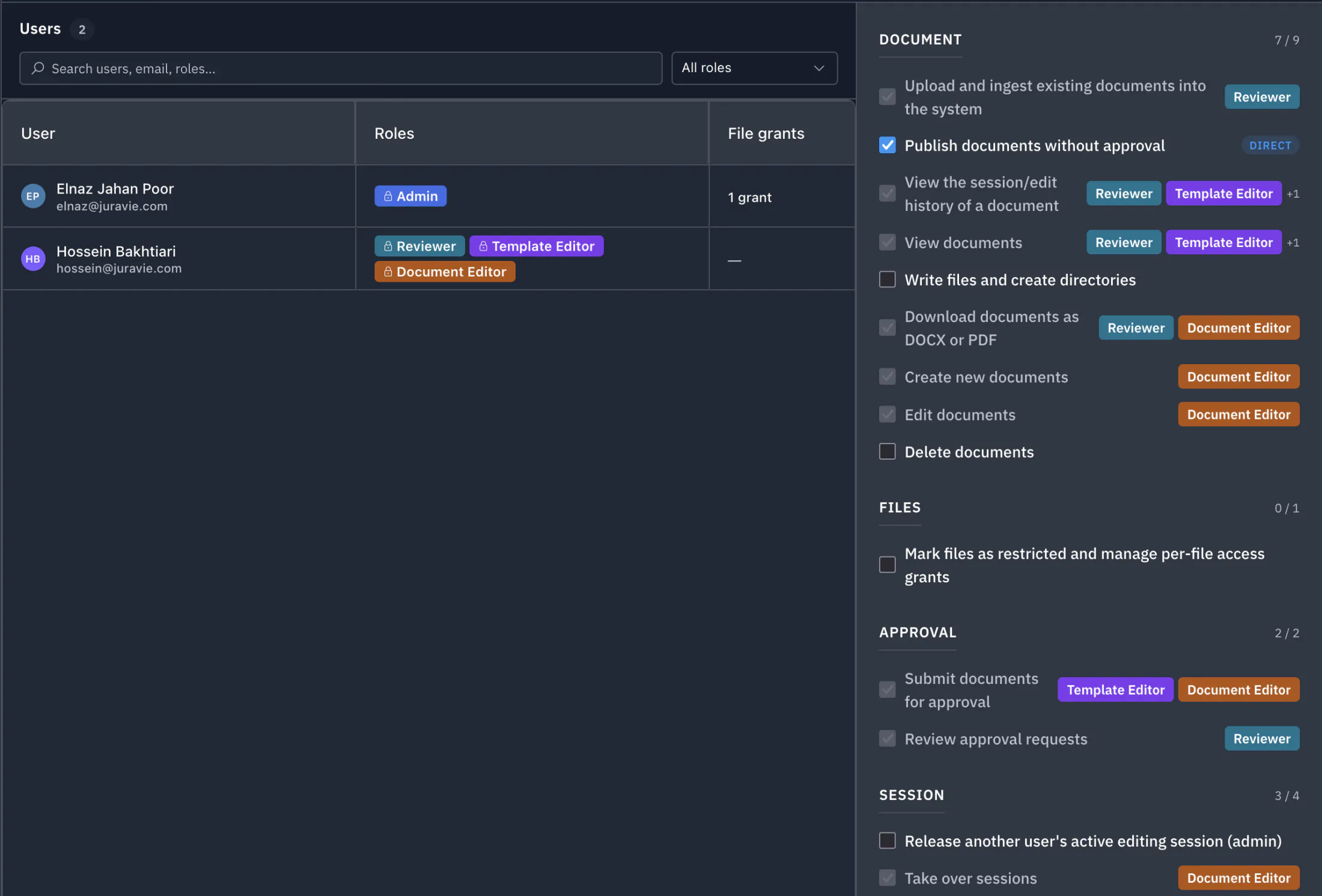
Roles for the rule. Overrides for the edge case.
Sometimes one paralegal needs to publish a template; sometimes one partner needs to bypass approvals. You don't break the role model for one exception. You grant or revoke that one permission for that one user. Effective permissions are computed from role + overrides; the user sees the result in their own My Access.
- Grant or revoke any individual permission for one user
- Effective permissions = role(s) + overrides, visible to admins and the user
- Overrides are auditable, with every change recorded by who and when
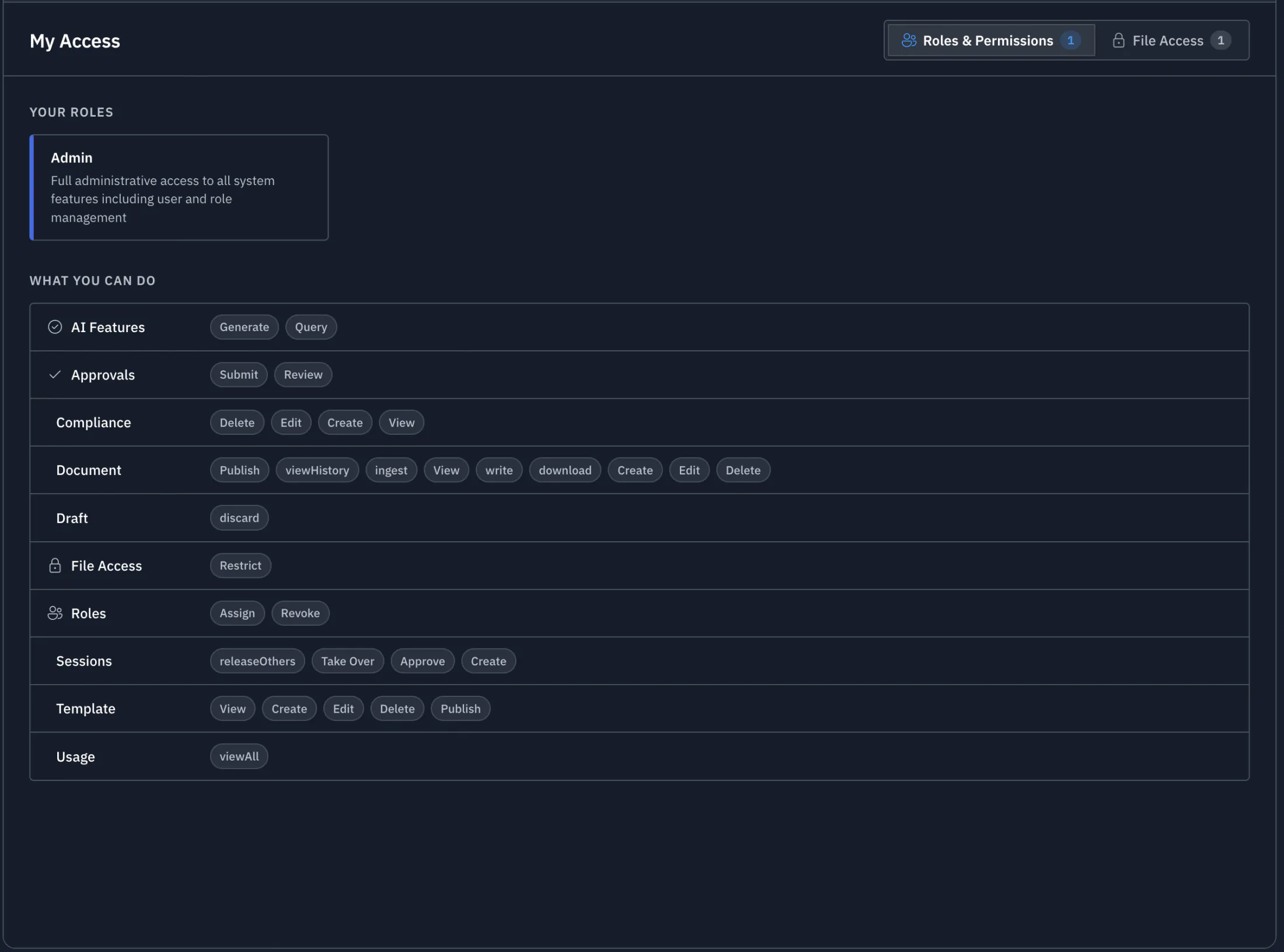
Every user sees exactly what they can do
The user-facing mirror of Manage Permissions. Every user can open My Access and see their role(s), their effective permissions grouped by area, and which restricted files they've been granted access to (by whom, and in what mode).
- Roles as colour-coded cards, with the same colour as the admin's view
- "What you can do" grouped by area: Documents, Templates, Approvals
- File Access tab listing every restricted file you've been granted, with the granter's name
Access is enforced. Audit makes it provable.
Every grant, every override, every restriction is recorded permanently. See it on the Sessions Dashboard timeline or export it to your SIEM.
Map your firm's structure to the product
Custom roles, per-user overrides, per-file restrictions, and an AI that obeys all three. Included for every user from day one.